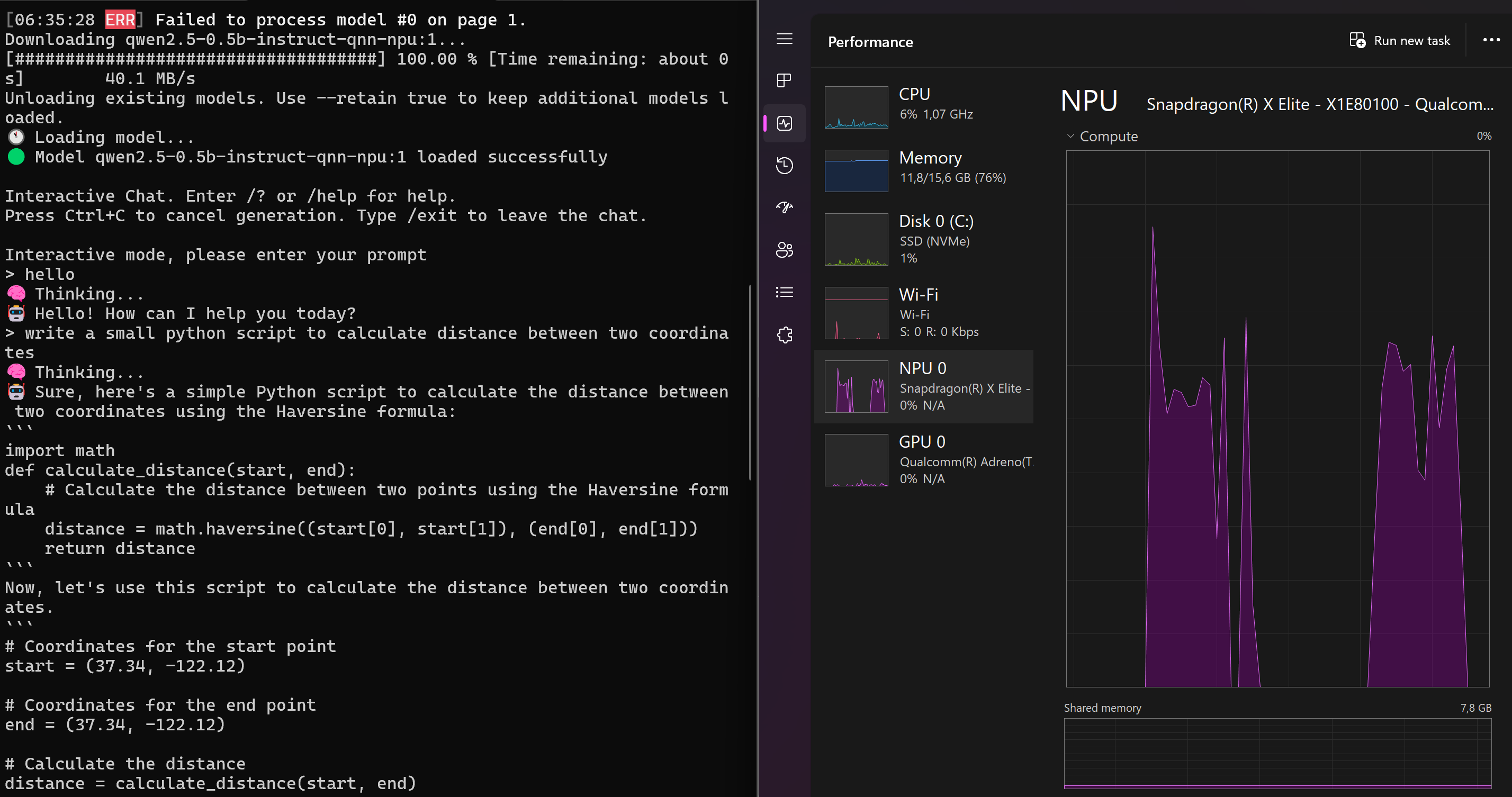
I picked up a Surface with a Snapdragon X Elite chip partly because of the on-device AI story. The NPU has 45 TOPS of compute, and Microsoft markets these devices specifically around local AI workloads. What I found when I actually tried to run a local LLM is that most of the popular tools completely ignore the NPU. Ollama runs on CPU only on ARM Windows. LM Studio does too, despite advertising GPU acceleration. The NPU just sits idle.
This post documents the path that actually works: installing the Hexagon NPU driver, setting up Microsoft Foundry Local, and connecting it to the Continue extension in VS Code. At the end of it, you get a fully local AI coding assistant running inference on the NPU, with no cloud dependency and no API costs.
What Is Actually Happening Under the Hood
The Snapdragon X Elite contains three compute units: the Oryon CPU, the Adreno GPU, and the Hexagon NPU. For LLM inference, the NPU is most power-efficient but also the most constrained. It runs ONNX models compiled specifically for Qualcomm’s QNN backend. Standard GGUF models used by Ollama and llama.cpp do not run on the NPU at all.
Microsoft Foundry Local is a local inference runtime built on ONNX Runtime. It ships pre-compiled, NPU-optimized model variants and handles hardware detection automatically. When it sees a Qualcomm NPU with the right driver installed, it downloads and runs the QNN variant of the model. No manual compilation required.
Prerequisites
- Windows 11 24H2 or later (NPU support is not available on earlier versions)
- A Snapdragon X Elite device with at least 16 GB RAM
- A free Qualcomm developer account (required to download the NPU driver)
Step 1: Install the Hexagon NPU Driver
The NPU driver that ships with Windows is not sufficient for Foundry Local. A dedicated Qualcomm Hexagon NPU Runtime Driver needs to be installed separately.
The direct path is the Qualcomm Software Center, which does not require installing the full Qualcomm Package Manager:
https://softwarecenter.qualcomm.com/catalog/item/QHND?osArch=ARM64&osType=Windows
Log in with a Qualcomm developer account, select the latest version (1.0.0.14 at the time of writing), and download the ARM64 Windows package.
Extract the ZIP and install through Device Manager:
- Open Device Manager (
Win + X→ Device Manager) - Expand Neural processors
- Right-click Snapdragon X Elite NPU → Update driver
- Choose Browse my computer for drivers and point to the extracted folder
After installation, reboot. Open Device Manager again and confirm the driver version under Neural processors matches the one in the package release notes.
Step 2: Install Foundry Local
Foundry Local installs via WinGet:
winget install Microsoft.FoundryLocal
After installation, open a new terminal and verify it:
foundry --version
foundry service start
foundry service status
The status command shows the local endpoint URL. Before listing models, set a fixed port so the endpoint does not change between restarts:
foundry service set --port 5273
foundry service restart
Now list available models filtered to NPU only:
foundry model list --filter device=NPU
On first run, Foundry Local downloads the QNN Execution Provider in the background. This is the Qualcomm-specific ONNX runtime backend. Wait for that to finish before checking the model list.
The output will show something like:
Alias             Device  Task   File Size  Model ID
deepseek-r1-7b    NPU     chat   3.71 GB    deepseek-r1-distill-qwen-7b-qnn-npu:1
phi-3.5-mini      NPU     chat   2.78 GB    phi-3.5-mini-instruct-qnn-npu:1
qwen2.5-7b        NPU     chat   2.78 GB    qwen2.5-7b-instruct-qnn-npu:2
Step 3: Download and Run a Model
For general purpose use I went with deepseek-r1-7b. It is a reasoning model distilled from DeepSeek R1, good at code and structured thinking, and at 3.7 GB it leaves enough headroom in the shared memory pool.
foundry model run deepseek-r1-7b
Foundry Local downloads the model on first run and then drops into an interactive CLI prompt. The download takes a few minutes depending on connection speed. After that, inference starts on the NPU.
To confirm the NPU is actually being used, open Task Manager, go to the Performance tab, and look for the NPU entry. During inference it should show 70-85% utilization with around 3.3 GB of the shared memory pool in use.
Step 4: Connect Continue in VS Code
Continue is a VS Code extension that turns the local Foundry endpoint into an inline coding assistant. Install it from the VS Code marketplace, then edit its config file directly rather than using the UI provider picker, which does not handle custom base URLs cleanly.
Open the config file at C:\Users\<username>\.continue\config.yaml and add:
models:
  - name: DeepSeek R1 7B (Local NPU)
    provider: openai
    model: deepseek-r1-distill-qwen-7b-qnn-npu:1
    apiBase: http://127.0.0.1:5273/v1
    apiKey: local
The model field must match the exact Model ID from foundry model list, including the colon-version suffix. The apiKey value is not validated by Foundry Local but cannot be left empty.
Save the file. Continue picks up the change immediately without a restart. Open the chat panel with Ctrl+L and send a test message.
Result
The first response will show a “Thought for Xs” indicator before the answer. That is the DeepSeek R1 reasoning chain running on the NPU. For a simple greeting it takes around 25-30 seconds because the model reasons before every response regardless of complexity. For actual coding tasks the quality justifies the wait.
Task Manager confirms what is happening: 83% NPU utilization, 3.3 GB of 7.8 GB shared memory in use, driver version 30.0.219.1000.
The model unloads automatically after 10 minutes of inactivity. The next request reloads it, which adds a few seconds of latency on the first message after idle. Keep a terminal with foundry model run deepseek-r1-7b open if consistent response times matter.
All inference runs locally. No data leaves the device, no subscriptions required, and the fan stays off during inference because the NPU runs cool compared to the CPU.
If the response time of a reasoning model feels too heavy for quick questions, qwen2.5-7b from the model list is a faster alternative that also supports function calling.